iFax - Send & receive fax app
- 3.3
- Rating
- 1.00M
- Installs
- Free
- Price
 Analysis by App-foxy
Faxing from a phone sounds like the kind of task that should have disappeared years ago, yet many offices, clinics, schools, landlords, and government departments still ask for a fax. I tested iFax - Send & receive fax as a practical answer to that awkward situation, and my overall impression is that it is most useful when you need a fax occasionally and do not want to maintain a physical machine. It turns an Android phone into a mobile fax workspace, with the convenience and compromises that come with using a phone for a document-heavy job.
The app is free to install and is aimed at everyone, which makes the first step approachable. It comes from Crowded Road and sits in the Business category. Its long presence on the platform is also notable: it was released on October 9, 2011, and the current version is 11.18.6. That history matters because faxing is not a trend-driven activity; reliability, clear controls, and a sensible workflow matter more than flashy design.
My recommendation is cautious rather than enthusiastic. If you need to send a signed form from a café, a work document while traveling, or a short packet when the office fax is unavailable, iFax can be convenient. If you fax large batches every week, need a tightly managed business archive, or dislike usage-based purchases, I would look at a dedicated business fax service instead.
You May Also Like

 Blood Strike: 2.5 Anniversary
Blood Strike’s Loadouts Turn Every Drop Into a Tactical Gamble
A close look at Blood Strike’s custom loadouts: how fast access to signature weapons reshapes its battle royale rhythm, rewards preparation, and narrows the gap between fights.

 Pandora - Music & Podcasts
Pandora’s Music Is Easy to Start, but Harder to Recover
Pandora’s strength is its low-effort path from a seed to a station. Its weak spot is how much confidence it asks you to place in connection, setup, and quiet recovery.

 8 Ball Pool
 Is Built on Rivalries, Rematches, and Routine
A close look at the rivalries, rematches, shared routines, and unanswered safety questions that turn a quick pool match into a persistent mobile community.

 Samsung Music
’s Quiet Strength Is Playing What You Already Own
Its reach comes less from spectacle than from dependable access to a personal library. That simplicity is both the app’s strongest retention engine and its ceiling.

 AccuWeather: Weather Radar
AccuWeather Review: A Quick, Clear Forecast for Everyday Decisions
For everyday plans, the best forecast is the one you can understand quickly. AccuWeather makes rain timing, radar, and local conditions easy to act on, with a few trade-offs.

 Hill Climb Racing
Why Hill Climb Racing Still Turns Crashes Into One More Run
A tiny car, a bumpy hill and one more upgrade: Hill Climb Racing keeps resurfacing because its simple chaos makes every near-miss feel personal.
More From Our News Desk



What using iFax feels like in everyday work
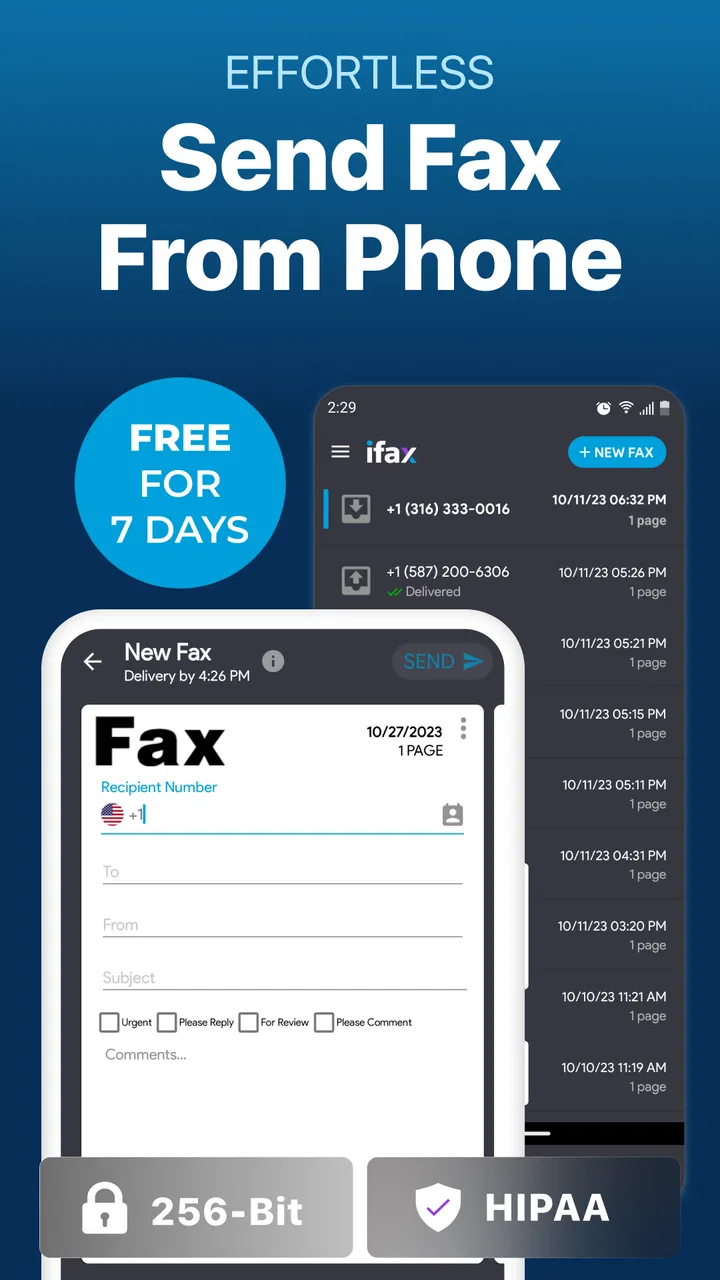
The main appeal is simple: I can prepare a document on a phone and handle the fax without finding a physical machine. That is especially useful for people who work between locations. A property manager might receive a lease addendum by email, save it to the phone, add the recipient’s fax details, and send it before meeting a tenant. A freelancer could use the same workflow for an occasional client form without buying equipment or paying for a traditional phone line.
The phone-based approach also changes where the app is useful. It is not just a replacement for an office fax machine; it can act as a fallback when the office is closed or when a document arrives outside normal working hours. I found that the strongest use case is an urgent, modest-sized document that is already available digitally. The less preparation required, the more the mobile format works in your favor.
There is a practical distinction between sending a document and managing a complete fax operation. Sending a one-off form is straightforward in concept. Running a department with shared queues, retention rules, approval steps, and a long audit trail is a different requirement. iFax may be a sensible personal tool, but I would not automatically treat a phone app as a substitute for an organization-wide document system.
The app’s average rating is 3.3 from around 6,600 ratings, with roughly 1,800 written reviews. I read that signal as mixed rather than disastrous. It suggests that the basic idea solves a real problem for some people, while others likely encounter friction around the mobile workflow, account expectations, delivery, or paid usage. That is consistent with my own view: the app is useful when your need is occasional and clearly defined, but it is not a magic solution for every faxing situation.
Preparing documents before sending
The quality of the experience depends heavily on the source document. A clean PDF is a much better starting point than a photograph of a page taken under poor lighting. Before sending anything important, I would open the file on the phone, check that every page is present, and make sure signatures, small print, and handwritten notes are readable at normal zoom.
This is one of the less obvious trade-offs of mobile faxing. The app can remove the need for a physical machine, but it cannot repair a badly captured document. If you scan a page at an angle or rely on a dim camera image, the recipient may receive a fax that is technically delivered yet practically unusable. My workflow is to scan in even light, crop the edges, rotate pages correctly, and review the final order before starting the transmission.
For multi-page files, I would also use a consistent naming habit before importing them. A name such as “insurance-form-final” is easier to recognize than a camera-generated filename when several documents are waiting on the phone. This sounds minor, but it reduces the chance of selecting a draft or sending the wrong attachment when you are working under pressure.
Why the mobile format is genuinely convenient
Traditional faxing usually means locating a machine, connecting to it, feeding pages, and waiting nearby. Email is faster for many documents, but some recipients still insist on fax. iFax occupies the space between those two methods. It is more portable than a machine and more compatible with fax-dependent offices than ordinary email.
That portability is valuable during travel. Imagine receiving a request for a signed authorization while away from your desk. If the document is stored on the phone and the recipient accepts fax, you can deal with it from the same device instead of forwarding files to a colleague or searching for a public fax machine. This is the kind of narrow but realistic scenario in which the app earns its place.
There is also less physical handling. You do not need to print a document merely to feed it into a machine, and you avoid keeping a separate fax device powered and supplied. For a small business that sends only a few faxes, that can make more sense than maintaining hardware for a task that may sit unused for weeks.
Where it differs from email and a regular fax machine
Email remains the better choice when the recipient accepts attachments and you want easy conversation, search, and replies in one thread. It is usually more natural for exchanging several revisions. Fax is still preferable when the receiving organization specifically requires it or when its workflow is built around fax records.
A physical fax machine can be faster for a busy reception desk handling many pages throughout the day. It also gives staff a familiar shared location for incoming paperwork. iFax is better suited to an individual or a small team member who needs mobility. Choosing between them is less about which technology is modern and more about where the documents originate, who must access them, and how often the process happens.
Compared with a dedicated online fax platform, the important question is scale. A specialized service may be a better fit for recurring business use, multiple users, centralized billing, or formal retention practices. I would choose iFax when convenience and occasional access matter more than a full administrative layer. I would choose the dedicated option when faxing becomes a core operational process rather than an occasional interruption.
Trust, controls, and moments that deserve extra care
Trust is especially important here because fax documents often contain personal, financial, medical, employment, or legal information. I do not judge the app’s trustworthiness from its age, download count, or appearance alone. The safer approach is to pay attention to the choices shown during use: what the app asks me to provide, what recipient details I enter, what document I select, and whether I can review those details before sending.
The app has passed the one-million-install mark, and its broad reach means many people use it for different kinds of paperwork. That does not remove the need for care. A large user base can indicate that a product is established, but it is not a guarantee that every workflow is suitable for sensitive documents. I would still read the current privacy and account screens myself before sending anything confidential.
One good habit is to separate document preparation from transmission. I prepare the file first, inspect every page, and only then enter the recipient information. This creates a deliberate pause between choosing the content and sending it. It is easy to focus so much on the document that the fax number receives less attention than it deserves, yet one incorrect digit can send private material to the wrong destination.
I would also avoid using a public or borrowed phone for sensitive faxing. Even if the app itself behaves as expected, a shared device may retain downloaded files, previews, screenshots, or account traces outside the fax workflow. Using a personal device with a screen lock and current system security is a more sensible baseline.
Account and purchase decisions
The app is free, but in-app purchases range from $0.99 to $384.99 per item. That wide range is the clearest reason to slow down before committing to a larger plan or repeated use. I would first identify whether I need a single transmission, occasional access, or a continuing fax number, then inspect the exact purchase choice presented in the app rather than assuming the cheapest option will cover the whole task.
This matters because “free to install” and “free for regular faxing” are not the same thing. Someone who only needs to send one document may find the entry point reasonable, while a user with frequent outgoing faxes could spend much more over time. Before uploading a sensitive file, I would make sure I understand what the selected purchase provides, whether it is one-time or recurring, and how account controls handle cancellation or changes.
I would not treat a fax number as a casual detail either. If you need to receive documents, the number becomes part of your professional identity and may need to remain available. A temporary solution can be fine for a short task, but a business that prints its fax number on forms should think about continuity before switching away from an established provider.
Receiving faxes and keeping control of documents
The app is presented as supporting both sending and receiving, which makes it more useful than a send-only utility. Receiving is also where I would be more deliberate about access. Incoming documents can arrive when you are busy, connected to an untrusted network, or sharing the phone with someone else. I would check the app regularly, move important files into the organization’s approved storage, and remove unnecessary local copies after confirming that the document has been handled.
That workflow is not glamorous, but it is important. A fax can be delivered successfully and still be mishandled afterward. I would avoid leaving sensitive previews visible in the app’s recent-document area, and I would not forward incoming files through casual messaging channels simply because that is faster. The phone makes receiving convenient; it also makes the document easy to copy, share, or forget.
For a small office, I would agree on who is responsible for checking incoming faxes. Without that simple rule, a mobile fax inbox can become a personal mailbox that nobody else knows how to access. If several people need the same incoming line, a dedicated shared service may offer a clearer arrangement than relying on one employee’s device.
What to check when a fax matters
A successful-looking send screen is not the same as a confirmed business outcome. When the document is time-sensitive, I would keep the original file, note the recipient details, and look for the app’s available transmission or delivery status. If the recipient is waiting, I would contact them through a separate channel to confirm that the pages arrived legibly.
This extra confirmation is worthwhile for contracts, applications, and medical paperwork. Fax transmission can involve busy numbers, unreadable pages, or a recipient who receives the document but cannot match it to your case. Keeping a small record of what was sent and when gives you something useful to reference if the recipient says the fax never arrived.
I would also avoid sending a large packet at the last minute. Break the process into a careful review first, then transmission, then confirmation. If the document is urgent and the app or recipient behaves unpredictably, an office fax machine or established online fax account may be the better backup. A mobile app is convenient, but convenience should not become the only contingency plan.
Who should use it and who should skip it
I think iFax is a good match for independent professionals, students dealing with an institution that still requires fax, landlords, caregivers handling occasional forms, and travelers who need a portable fallback. It is particularly appealing when the alternative is buying a machine for rare use. The app’s Everyone age rating also makes it broadly accessible, although suitability for a person depends on the sensitivity and importance of the documents they handle.
I would be more hesitant to recommend it as the main tool for a medical practice, legal department, or large administrative team without first checking the organization’s requirements for access, retention, billing, and oversight. Those users may need controls that go beyond sending and receiving from one phone. In that setting, a managed service with clear organizational ownership is likely the safer operational choice.
I would also skip it if you strongly prefer predictable flat costs and do not want to inspect purchase terms. The in-app price range means that frequent users should calculate their likely spending rather than assuming that occasional convenience will remain inexpensive. If you send only a few faxes, that may not be a problem; if faxing is routine, the economics deserve a direct comparison with a subscription service.
My practical setup for using it responsibly
My preferred routine is simple. I keep the final document in a clearly named PDF, check the page count and readability, verify the recipient number character by character, and review the purchase screen before confirming anything paid. I then save a copy of the document and any available transmission record in an appropriate place, rather than relying on the phone app as the only archive.
For sensitive paperwork, I use the minimum information needed to complete the task and avoid storing extra drafts on the device. I do not take screenshots of confidential confirmation screens unless there is a clear reason. After the recipient confirms receipt, I clean up duplicate scans and temporary images while preserving the official copy required for my records.
These steps are not special features that make the app more powerful; they are habits that make a mobile fax workflow less error-prone. The app’s biggest strength is reducing the distance between a document and a fax destination. My responsibility is to add the checks that a physical office process might have provided automatically.
Final assessment for Android users
iFax - Send & receive fax is a focused Business app from Crowded Road that makes sense when a fax is necessary but a physical machine is inconvenient. Its free installation, mobile format, and support for sending and receiving give it a clear role as an occasional tool. The current version, 11.18.6, requires Android 8.0 or later, so users on older devices should check compatibility before planning around it.
I like it most as an emergency bridge: a way to send a properly prepared document while away from the office, or to receive a form without maintaining fax hardware. I like it less as a complete document-management solution. The mixed average of 3.3, the broad range of in-app purchase prices, and the natural limitations of phone-based handling all point toward a careful trial rather than blind reliance.
My bottom line is to use iFax for convenience, but keep control of the document, the recipient, and the cost. If your fax needs are occasional and personal, it can save a surprising amount of time. If your work depends on high-volume faxing, shared access, formal records, or tightly predictable billing, compare it with a dedicated online fax service or a conventional office setup before making it central to your workflow.
FAQs for iFax - Send & receive fax app
01What is iFax - Send & Receive Fax, and how does it work?
iFax is a mobile faxing app that allows you to send and, depending on your account and region, receive faxes from an Android or iOS device. You can usually import documents from your phone, cloud storage, email, or camera, add a recipient’s fax number, and monitor delivery status. It is designed to replace a traditional fax machine for occasional or business use.
02Can I send a fax internationally with iFax?
iFax generally supports faxing to many international destinations, but availability, pricing, and delivery reliability can vary by country and destination number. Before sending an important document, check the app’s current international rates and supported regions. International faxes may also take longer to complete, and the recipient’s fax line must be active and capable of accepting incoming transmissions.
03Does iFax offer a free trial or require a subscription?
The app may be free to download, but faxing commonly involves credits, paid pages, or a subscription plan. The exact offer can change according to your platform, location, and current promotion. Review the pricing screen carefully before confirming a purchase, especially for automatic renewal terms. Unused credits, page limits, and premium features may also differ between plans.
04What file types and documents can I fax through iFax?
iFax is intended for common business documents such as PDFs, images, scans, and files imported from your device or supported cloud services. The app may convert documents into a fax-compatible format before transmission. For the best results, use clear, high-contrast pages with readable text, keep file sizes reasonable, and review the preview carefully to ensure that every page is correctly oriented and included.
05Is iFax secure enough for sending sensitive documents?
iFax can be useful for transmitting documents, but users should still consider privacy before sending medical, financial, legal, or personally identifiable information. Check the app’s privacy policy, encryption practices, storage procedures, and account-security options. Use a strong password and avoid unsecured public networks when possible. Also confirm the recipient’s fax number, because a misdialed fax can expose confidential information.
Pros
- Send and receive faxes directly from your smartphone.
- Supports document scanning with the phone’s camera.
- Provides fax delivery notifications and status updates.
- Works with common file formats such as PDF and image files.
- Useful for remote work without needing a physical fax machine.
Cons
- Free usage is limited and heavier users may need a subscription.
- Fax numbers and plans can be relatively expensive.
- Internet access is required to send or receive faxes.
- Some advanced features may be restricted to paid plans.
- Scanning quality depends on lighting and your phone’s camera.

iFax - Send & receive fax app
Gallery